


Transform your cherished iPhone snapshots into tangible keepsakes! This guide explores everything you need to know to print 4×6 photos from iPhone, offering practical advice for home printing, convenient online services, and quick in-store options. Discover how to ensure optimal quality and preserve your digital memories in a classic 4×6 format.
Print 4×6 Photos from Iphone: Turning Digital Memories into Tangible Treasures
We live in a digital world, don’t we? Our iPhones are treasure troves of memories, capturing everything from everyday moments to once-in-a-lifetime adventures. From candid shots of your pet to breathtaking landscapes from your last vacation, these photos often live exclusively on our screens, shared on social media or scrolled through in our camera rolls. But there’s a unique joy, a special magic, in holding a physical photograph in your hands. The feel of the paper, the vibrant colors, the shared nostalgia – it’s an experience that a digital display just can’t replicate.
That’s where printing comes in! Specifically, printing 4×6 photos from your iPhone. The 4×6 size is a timeless classic, perfect for albums, frames, scrapbooks, or even sharing with friends and family. It’s the standard size that fits most photo frames and albums, making it incredibly versatile. If you’ve ever wondered how to bring those stunning shots off your phone and into the real world, you’re in the right place. We’re going to explore all the ins and outs of how to print 4×6 photos from iPhone, ensuring your precious memories look their absolute best.
So, let’s embark on this journey together. We’ll cover everything from understanding your iPhone’s camera capabilities to choosing the best printing method, whether you prefer the convenience of home printing, the quality of online services, or the speed of in-store kiosks. By the end of this guide, you’ll be an expert at transforming your digital snapshots into beautiful, lasting prints. Let’s get those memories printed!
Key Takeaways
- Understand Aspect Ratio: Your iPhone’s native photo aspect ratio (4:3) often differs from the standard 4×6 print size (3:2), which might require cropping.
- Choose Your Printing Method: You have three main options to print 4×6 photos from iPhone: home photo printers, online printing services, or in-store kiosks.
- Home Printing for Control: Investing in a dedicated photo printer gives you immediate results and full control over paper type and color, but requires upfront cost and supplies.
- Online Services for Convenience: Online platforms offer high-quality prints, competitive pricing, and doorstep delivery, ideal for bulk orders and consistent results.
- In-Store Kiosks for Speed: Local photo labs and retail kiosks provide instant gratification, perfect for last-minute prints, though quality can vary.
- Optimize Before Printing: Always check resolution, perform basic edits like brightness and contrast adjustments, and ensure proper cropping for the best print quality.
- Protect Your Prints: Once you print 4×6 photos from iPhone, store them properly in albums or frames to prevent fading and damage, preserving your memories for years.
Quick Answers to Common Questions
Can I print 4×6 photos directly from my iPhone without a computer?
Yes, absolutely! You can print 4×6 photos from your iPhone using Wi-Fi enabled home photo printers (via their dedicated apps), online printing service apps, or by connecting your iPhone directly to in-store photo kiosks.
Will my iPhone photos fit a 4×6 print without cropping?
Generally, no. iPhone photos typically have a 4:3 aspect ratio, while 4×6 prints have a 3:2 aspect ratio. This means your photos will be slightly cropped (usually from the top and bottom) to fit the 4×6 size. Always preview and adjust the crop before printing.
What’s the best way to ensure high-quality 4×6 prints from my iPhone?
To ensure high quality, start with well-lit, high-resolution original photos (avoid digital zoom). Perform basic edits like adjusting brightness, contrast, and color. Most importantly, carefully review the crop before you print 4×6 photos from iPhone to ensure no important details are cut off.
Are online photo printing services better than home printers for 4×6 prints?
It depends on your priorities. Online services often offer professional-grade quality and lower per-print costs for bulk orders, but require waiting for delivery. Home printers provide instant prints and full control, but have higher upfront and ongoing supply costs.
Can I print black and white 4×6 photos from my iPhone?
Yes, you can! Your iPhone’s editing tools allow you to convert color photos to black and white. Most printing services and home printers will accurately reproduce these monochrome images. Just make sure the conversion looks good on your screen before printing.
📑 Table of Contents
- Why Print 4×6 Photos from Your iPhone? The Enduring Appeal of Physical Prints
- Understanding Your iPhone Photos Before You Print
- Methods to Print 4×6 Photos from iPhone: Your Options Explored
- Tips for Getting the Best Quality 4×6 Prints from Your iPhone Photos
- Preserving Your Printed Memories
- Conclusion: Cherish Your Memories, One Print at a Time
Why Print 4×6 Photos from Your iPhone? The Enduring Appeal of Physical Prints
In an age dominated by cloud storage and infinite scrolling, you might ask, “Why bother to print 4×6 photos from iPhone?” It’s a fair question, but the answers are deeply rooted in our human desire for tangibility and permanence.
Bringing Memories to Life
Think about it: how often do you truly *look* at those thousands of photos on your phone? Probably not as often as you’d like. A physical print, however, demands attention. It’s a conversation starter on your coffee table, a daily reminder of a loved one in a frame, or a nostalgic journey through a photo album. Printing your favorite shots helps cement those memories, giving them a physical presence that a digital file can’t.
Sharing and Gifting Made Easy
Want to share a special moment with a grandparent who isn’t tech-savvy? A printed 4×6 photo is the perfect solution. They can hold it, put it in their wallet, or display it proudly. Printed photos make wonderful, heartfelt gifts for birthdays, holidays, or just because. They show thought and effort, creating a lasting impression far beyond an emailed attachment.
Protection Against Digital Loss
While cloud backups are great, technology can be fickle. Phones get lost, hard drives crash, and sometimes, those precious digital files can become inaccessible. Having physical prints provides an extra layer of security for your most cherished memories. If you print 4×6 photos from iPhone, you’re creating a backup that doesn’t rely on Wi-Fi or battery life.
Understanding Your iPhone Photos Before You Print
Before you rush to print 4×6 photos from iPhone, it’s helpful to understand a few things about how your iPhone captures images. This knowledge will help you achieve the best possible print quality.
Aspect Ratio: The 4:3 vs. 3:2 Dilemma
Most iPhones capture photos with an aspect ratio of 4:3. This means that for every 4 units of width, there are 3 units of height. A standard 4×6 inch print, however, has an aspect ratio of 3:2 (6 inches wide by 4 inches high). If you do the math, 4/3 = 1.33 and 3/2 = 1.5. They aren’t the same!
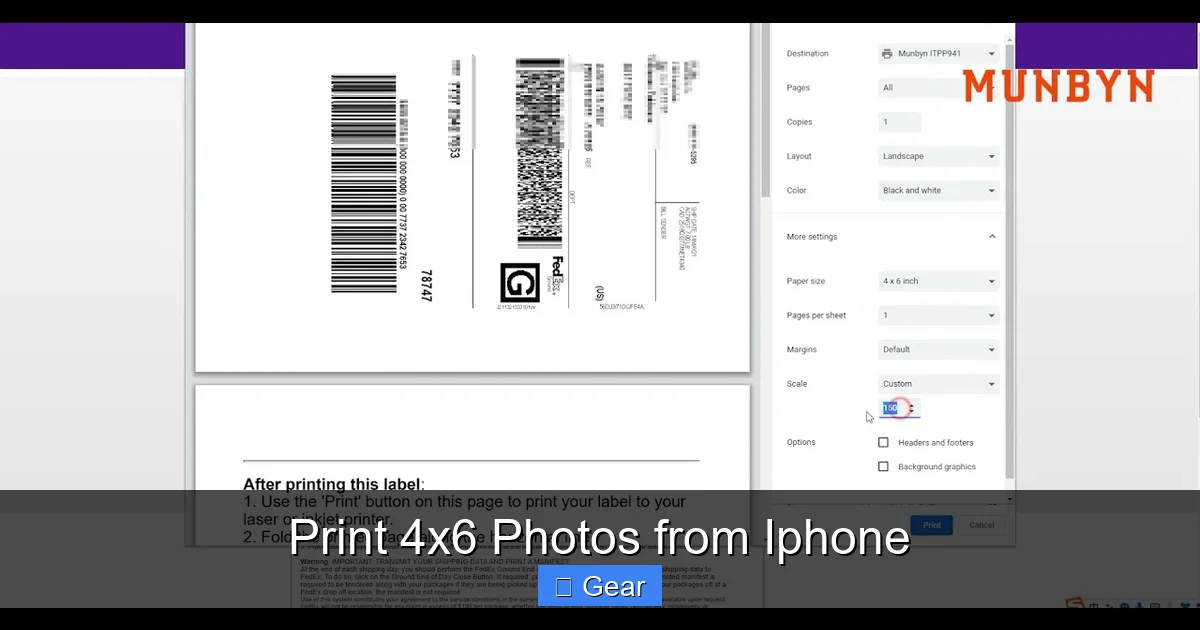
Visual guide about Print 4×6 Photos from Iphone
Image source: i.ytimg.com
What does this mean for you? When you try to print 4×6 photos from iPhone that are in 4:3, one of two things will happen:
- Cropping: The printer or service will automatically crop a small portion from the top and bottom of your photo to fit the 3:2 ratio.
- White Bars (Letterboxing): Less commonly, some services might add white bars to the sides or top/bottom if they preserve the full image without cropping.
Most people prefer cropping to avoid white bars. The key takeaway here is to always preview your photo before printing and adjust the crop if necessary to ensure important elements aren’t cut off. You can often do this directly in your iPhone’s Photos app by tapping “Edit,” selecting the crop tool, and choosing the 3:2 aspect ratio.
Resolution and Image Quality
Modern iPhones take incredibly high-resolution photos, usually more than sufficient for a crisp 4×6 print. Generally, a photo with at least 2 megapixels (MP) is considered good enough for a 4×6 print. Your iPhone’s camera typically far exceeds this, especially with newer models, so resolution usually isn’t an issue for this print size.
However, be mindful of:
- Zooming: Digital zooming (pinching to zoom in) reduces image quality. Always try to get physically closer to your subject instead of zooming digitally.
- Low Light: Photos taken in very low light without proper flash or lighting can be grainy.
- Screenshots: Screenshots are often lower resolution than actual photos and might not look as sharp when printed.
Methods to Print 4×6 Photos from iPhone: Your Options Explored
When you decide to print 4×6 photos from iPhone, you have several excellent avenues to choose from, each with its own benefits and drawbacks.
1. Printing at Home with a Photo Printer
For those who love instant gratification and complete control, printing at home is a fantastic option. Dedicated photo printers, especially those designed for 4×6 prints, have become very affordable and user-friendly. These are often called “dye-sublimation” printers, known for their vibrant, long-lasting prints.
Pros of Home Printing:
- Immediate Results: Print on demand, whenever you want.
- Full Control: Choose your paper type (glossy, matte), adjust colors, and experiment with edits.
- Privacy: Your photos never leave your home network.
Cons of Home Printing:
- Upfront Cost: You need to buy the printer itself.
- Ongoing Costs: Ink cartridges and photo paper can add up, especially if you print frequently.
- Maintenance: Printers sometimes require cleaning or troubleshooting.
How to Print 4×6 Photos from iPhone at Home:
- Choose a Printer: Look for photo-specific printers like Canon SELPHY or Epson PictureMate models, which are popular for 4×6 prints.
- Connect Your iPhone: Most modern photo printers are Wi-Fi enabled. Download the printer’s specific app to your iPhone. This app will allow you to select photos directly from your camera roll.
- Load Supplies: Ensure you have the correct 4×6 photo paper and ink/dye cartridges loaded.
- Select & Print: Open the printer app, select the photos you want to print, make any necessary cropping adjustments within the app, and hit print!
2. Using Online Photo Printing Services
If you’re looking for professional quality, competitive pricing, and don’t mind waiting a few days for delivery, online photo printing services are an excellent choice. Many reputable companies specialize in turning your digital files into beautiful prints.
Pros of Online Services:
- High Quality: Professional labs often use higher-grade paper and printing processes.
- Cost-Effective: Often cheaper per print, especially for bulk orders.
- Convenience: Order from your couch, and prints are delivered to your door.
- Variety of Products: Beyond 4×6 prints, they often offer larger prints, canvases, photo books, and gifts.
Cons of Online Services:
- Waiting Time: You’ll have to wait for processing and shipping.
- Less Control: You can’t physically see the print until it arrives.
- Shipping Costs: Can negate some savings for small orders.
Popular Online Services to Print 4×6 Photos from iPhone:
- Shutterfly: Very popular, user-friendly app, frequent discounts.
- Snapfish: Similar to Shutterfly, good deals, reliable.
- Walgreens/CVS Photo (Online Ordering): Often offers same-day pickup at local stores, combining online convenience with in-store speed.
- Mpix: Known for higher-end, professional quality prints.
How to Print 4×6 Photos from iPhone via Online Service:
- Download the App: Install the chosen service’s app on your iPhone.
- Upload Photos: Grant the app access to your photos and upload the ones you want to print.
- Select Product: Choose “4×6 prints” and specify quantities.
- Review & Order: Crucially, *review each photo for cropping*. The app usually shows you exactly how the 4×6 frame will cut into your original 4:3 image. Adjust the crop if needed. Proceed to checkout and payment.
3. In-Store Photo Kiosks
For those times you need prints *right now*, in-store kiosks are a lifesaver. Many pharmacies, supermarkets, and electronics stores have self-service photo printing stations.
Pros of In-Store Kiosks:
- Instant Gratification: Get your prints in minutes.
- No Shipping: No waiting, no shipping fees.
- No Home Equipment Needed: Don’t need to own a printer or supplies.
Cons of In-Store Kiosks:
- Variable Quality: Print quality can differ significantly between machines and stores.
- Less Control: Limited paper options and color adjustments.
- Potentially More Expensive: Can be pricier per print than bulk online orders.
How to Print 4×6 Photos from iPhone at a Kiosk:
- Locate a Kiosk: Find a store like Walgreens, CVS, Walmart, or a local photo shop with a self-service kiosk.
- Connect Your iPhone: Kiosks typically offer multiple connection methods:
- Cable: Most have Lightning cables to plug in your iPhone directly.
- Wireless: Some support AirPrint, Bluetooth, or have their own app that lets you send photos to the kiosk over Wi-Fi.
- USB Drive/SD Card: If you’ve transferred photos to one of these, you can use them.
- Select & Crop: Follow the on-screen prompts to select your photos. Pay close attention to the cropping tool on the kiosk screen to ensure your 4×6 print looks exactly as you intend.
- Pay & Print: Once you’ve selected and confirmed your prints, pay at the kiosk or the store’s main checkout, and your prints will be ready in moments.
Tips for Getting the Best Quality 4×6 Prints from Your iPhone Photos
No matter which method you choose to print 4×6 photos from iPhone, a little preparation can go a long way in ensuring your prints look spectacular.
Edit Your Photos Wisely
Before sending your photos to print, take a moment to make some basic edits. Your iPhone’s built-in Photos app has powerful editing tools:
- Brightness/Exposure: Adjust if your photo is too dark or too bright.
- Contrast: Adds depth and pop to your images.
- Saturation: Boosts or reduces color intensity. Use sparingly to avoid unnatural-looking colors.
- Sharpening: Can make details more defined, but over-sharpening can introduce artifacts.
- Crop: As discussed, manually crop to a 3:2 aspect ratio (4×6) *before* sending for print to have full control over what gets cut off.
Pro Tip: Edit on your iPhone’s screen, but remember screens are backlit and can make photos appear brighter than they will look on paper. Don’t over-brighten!
Check for High-Resolution Originals
Always ensure you are printing from the original, high-resolution file. If you’ve significantly compressed a photo for sharing or taken it from a screenshot, it might not look as good as a direct copy from your camera roll.
Use Good Quality Paper and Ink (for Home Printing)
If you’re printing at home, the quality of your photo paper makes a huge difference. Don’t skimp here. Invest in good quality glossy or matte photo paper designed for your printer type. Also, use genuine ink cartridges from your printer’s manufacturer for optimal color accuracy and longevity.
Consider Color Calibration (Advanced)
For serious enthusiasts, you might notice that prints look slightly different than they do on your screen. This is due to color profiles and monitor calibration. While most people won’t need to do this for casual 4×6 prints, understanding that screen colors can differ from print colors is important. Some online services offer color correction, or you can calibrate your screen if you have the tools.
Preserving Your Printed Memories
Once you print 4×6 photos from iPhone, the journey isn’t over! To ensure your beautiful prints last for years to come, proper storage is key.
Photo Albums and Scrapbooks
The classic choice! Photo albums protect your prints from dust, fingerprints, and light exposure. Look for “archival safe” albums and sleeves, which are acid-free and PVC-free to prevent yellowing or damage to your photos over time.
Frames and Displays
For your favorite shots, a nice frame can turn a photo into a piece of art. Ensure the frame has UV-protective glass if it will be in direct sunlight, as prolonged exposure can cause fading.
Digital Backup (Still Important!)
Even though you have physical prints, it’s still a good idea to maintain a digital backup of your original photos on the cloud (iCloud, Google Photos, Dropbox) or an external hard drive. This offers maximum peace of mind.
Conclusion: Cherish Your Memories, One Print at a Time
From capturing fleeting moments on your device to transforming them into tangible treasures, the ability to print 4×6 photos from iPhone is a truly wonderful thing. Whether you opt for the hands-on approach of home printing, the professional finish of online services, or the instant gratification of in-store kiosks, the end result is the same: a beautiful, physical memory you can hold, share, and cherish.
So, go ahead! Dive into your camera roll, pick out those special shots, and bring them to life. There’s an unmatched satisfaction in flipping through an album filled with your own photographic journey. Don’t let your most precious moments get lost in the digital ether. Print 4×6 photos from iPhone and start building a legacy of tangible memories today. Happy printing!
🎥 Related Video: How do I print a 4×6 photo from my iPhone?
📺 Ask About Tech & Tips
Printing 4×6 Photos from iPhone Made Easy Print iPhone Photos Learn how to easily print a 4×6 photo from your iPhone …
Frequently Asked Questions
What is the ideal resolution for printing 4×6 photos from my iPhone?
For a good quality 4×6 print, you generally want at least 300 pixels per inch (ppi). A 4×6 print at 300 ppi would be 1200 x 1800 pixels. Modern iPhones capture photos far exceeding this resolution, so your photos should be more than sufficient for sharp 4×6 prints.
How do I prevent my 4×6 prints from fading over time?
To prevent fading, store your prints away from direct sunlight and extreme temperatures. Use archival-safe photo albums and frames with UV-protective glass. If printing at home, use quality photo paper and genuine, pigment-based inks, which are more fade-resistant than dye-based inks.
Is it cheaper to print 4×6 photos from iPhone at home or using an online service?
For occasional prints, an online service can be cheaper due to lower per-print costs, especially if you catch a sale. However, for very frequent printing, a home photo printer might be more cost-effective in the long run, despite the initial investment in the printer and ongoing supply costs.
What’s the difference between glossy and matte photo paper for 4×6 prints?
Glossy paper has a shiny, reflective finish that makes colors vibrant and images sharp, but it can show fingerprints and glare. Matte paper has a non-reflective, subtle finish, offering a softer look and better resistance to fingerprints, though colors might appear slightly less vibrant.
Can I print Live Photos as 4×6 prints?
When you print 4×6 photos from iPhone that are Live Photos, only the still image (the “key photo”) will be printed. The motion element of the Live Photo is a digital feature and cannot be reproduced on a physical print.
Should I edit my photos on my iPhone or a computer before printing 4x6s?
For most users, editing directly on your iPhone using the built-in Photos app or third-party editing apps like Snapseed or Lightroom Mobile is perfectly adequate for preparing 4×6 prints. These tools offer excellent control for basic adjustments and cropping. If you’re a professional, a calibrated computer monitor might offer more precise color control.
